AI Match
AI Match ranks open roles against your resume so the jobs that fit your real experience surface first. Your AI Match page is where you shape your matches.
How it works
- Add your resume. Paste it or upload a file on your AI Match page. FindRole parses it into sections — summary, skills, experience, and education — and stores it on your profile.
- We build your search from it. Your resume becomes the query: the skills and experience in it are what we go looking for across every open role.
- Every role is scored. Hybrid search pulls candidate roles from the whole corpus, then a cross-encoder reads your resume and each job description together to score the fit. That relevance score drives the ranking, nudged by how fresh the posting is and how much it resembles jobs you've saved.
- You get a match label. Each role shows how strong the match is, so you can focus your applications.
Set up your criteria
Everything lives in the AI Match Criteria card, split into three tabs — Resume, Keywords, and Filters. Make a change on any tab and click Save changes; your matches refresh on the next run.
1. Resume upload
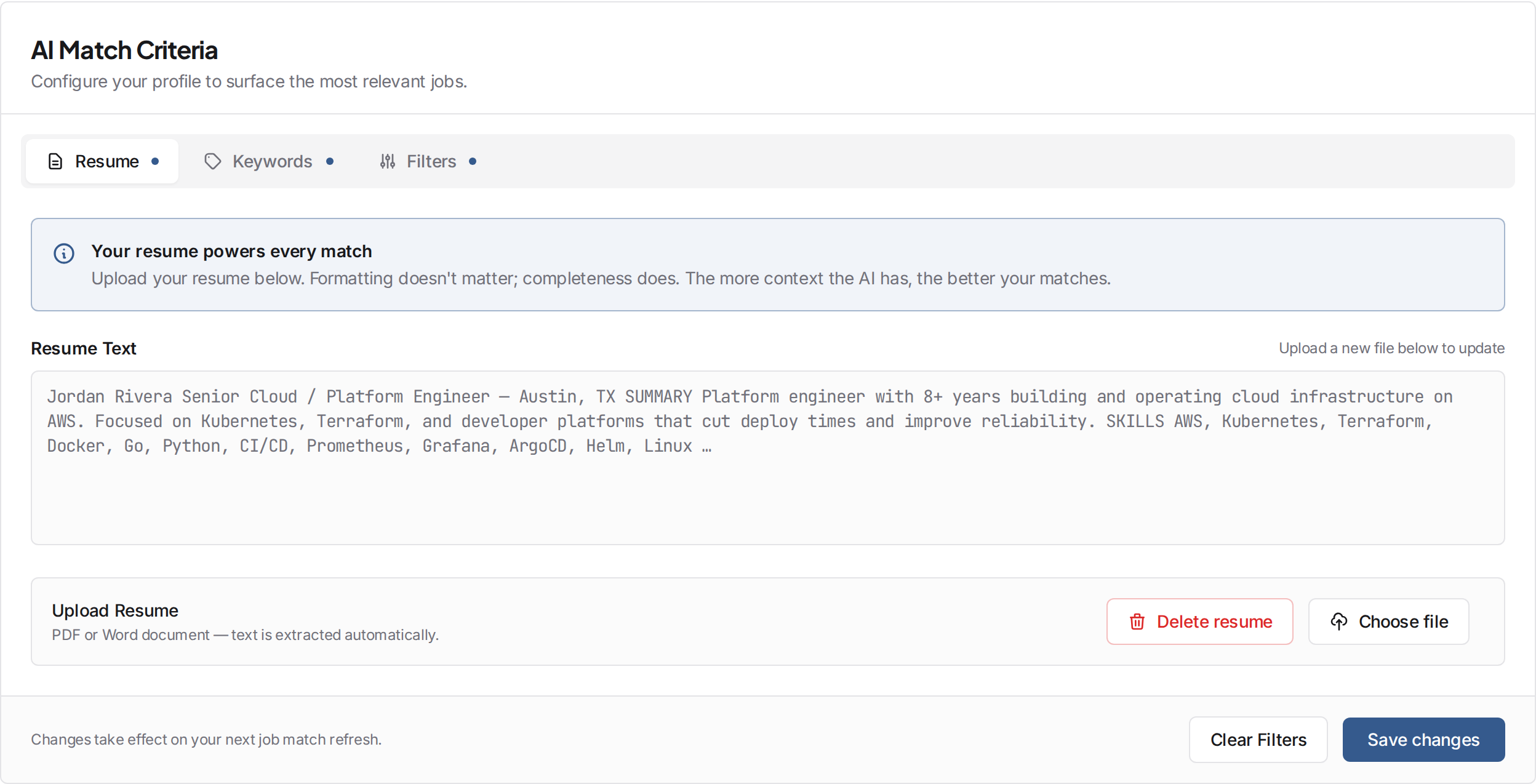
The Resume tab is the foundation — your resume powers every match. Click Choose file to upload a PDF or Word document and FindRole extracts the text automatically, then re-scores your matches. Replace it anytime by uploading a new file, or remove it with Delete resume.
Not signed up yet? You can try the matching first with the free AI match preview — upload your resume and see a one-shot preview of your top matches, no account needed. Each preview card has the same Role summary as the signed-in page (described under Your matches below): the role at a glance, its skills, what you'd do, what the employer wants, and the job-post link. Your resume is matched in memory and never stored.
2. Keywords
The Keywords tab fine-tunes ranking on top of your resume:
- Boost Keywords — phrases that raise the score of matching jobs. Type your own, or click chips from the Keyword Library (filterable by category: languages, frameworks, cloud, data, AI/ML, security, process).
- Negative Keywords — hide jobs whose title or description matches.
- Negative Company — hide jobs from specific companies.
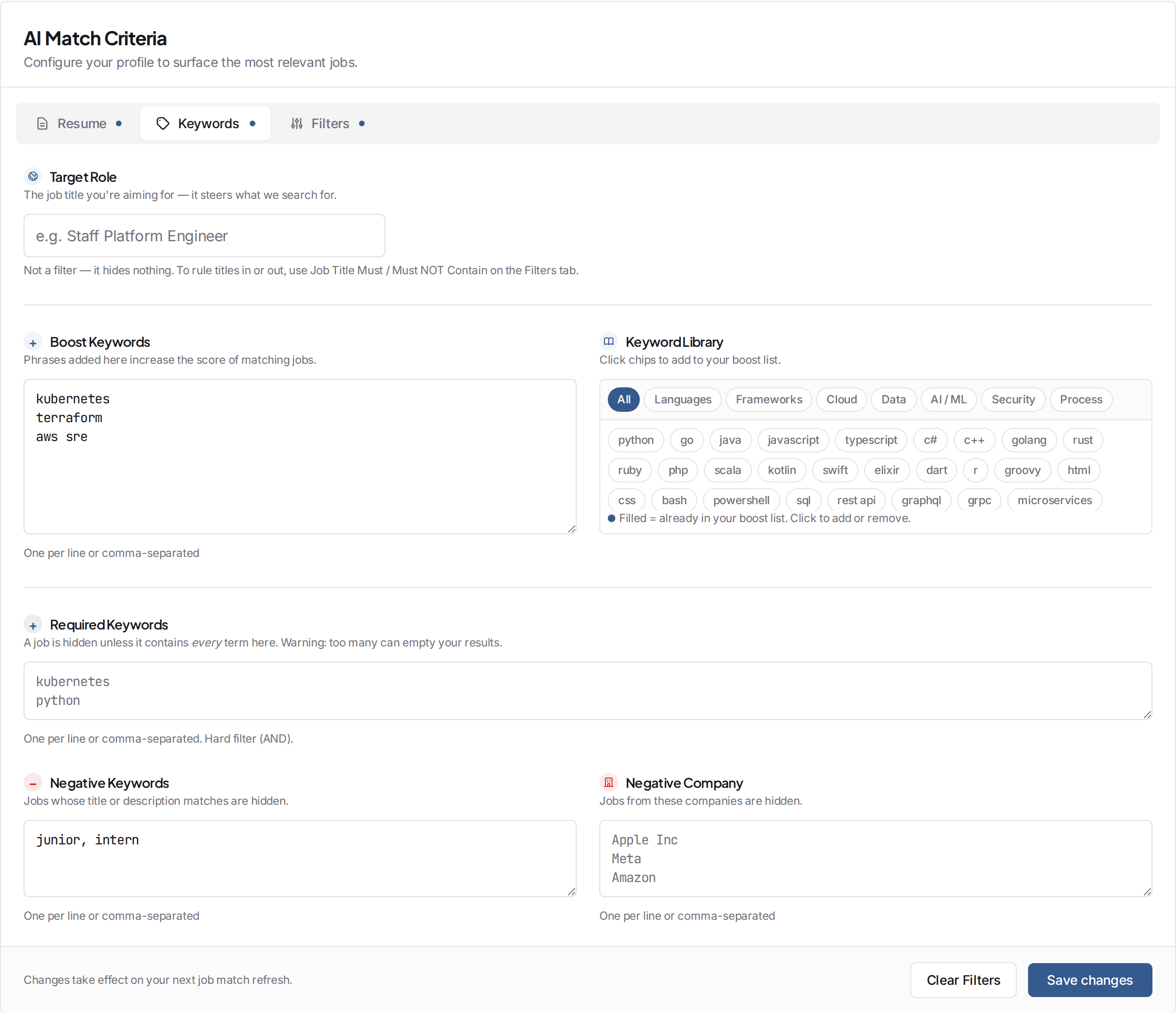
Enter one term per line, or comma-separated.
3. Filters
Filters are hard cutoffs applied before AI ranking — a job must pass every filter you set to appear at all. Leave any field blank to skip it.
- Minimum Salary — only show roles paying at least this amount annually.
- Location — a city plus a mileage radius (geocoded via OpenStreetMap), or tick Remote only to see just fully-remote roles.
- Job Title Must Contain — comma-separated terms; a job matches if its title contains any of them.
- Seniority level — pick any of Junior, Mid-Level, Senior, and Staff+. We estimate a level for every job from its title, falling back to the years of experience it asks for. Staff+ is the top tier — Staff, Principal, Distinguished, and Director/VP and above. Leave all unchecked to see every level. By default we keep jobs whose level is unclear and just rank them lower; tick Only show jobs that clearly match my level to hide those too.
- Role type — choose Any, Individual Contributor, or People management. People management means roles with direct reports (Manager, Director, VP); Individual Contributor is hands-on roles, including Tech Leads.
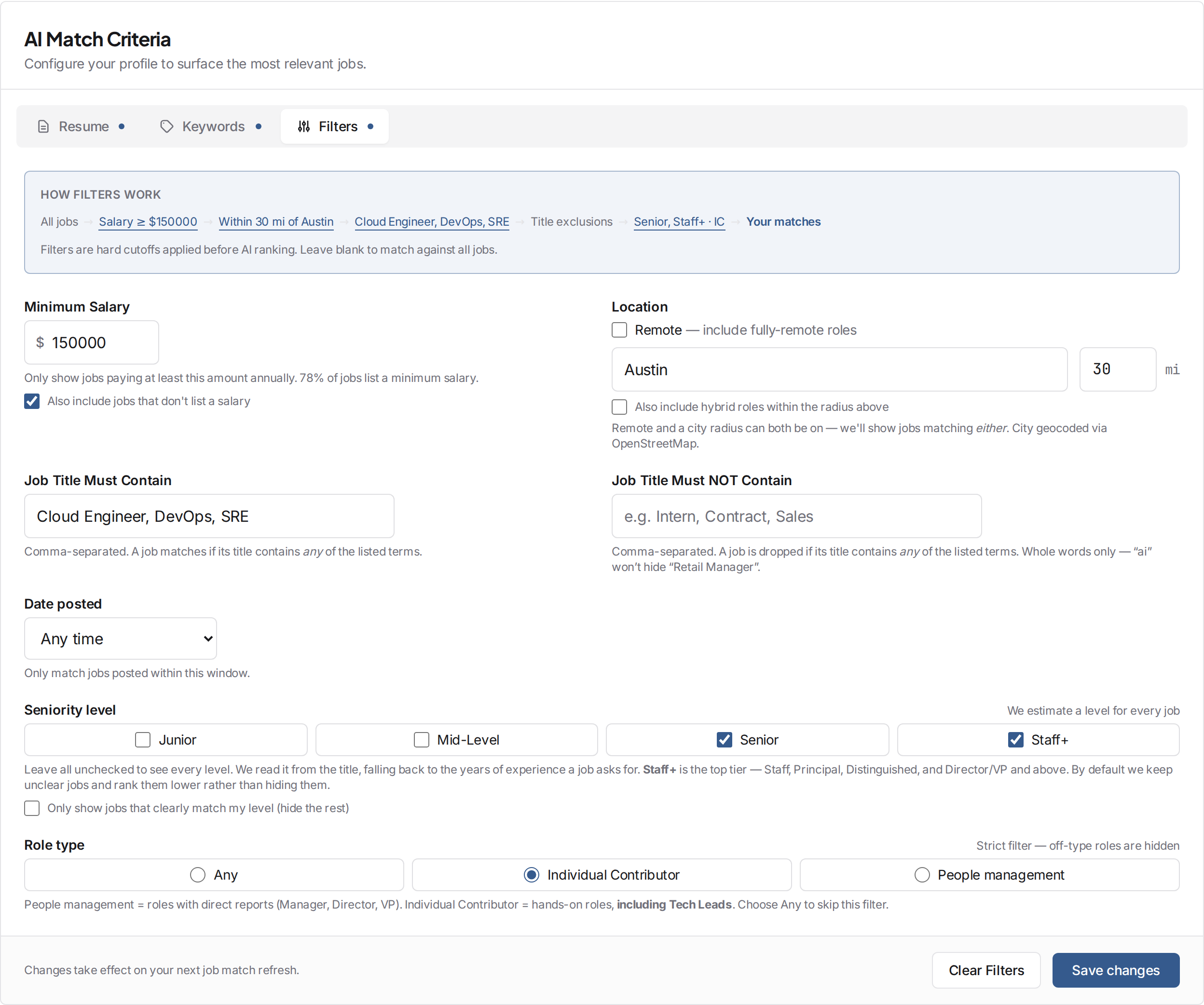
The pipeline strip at the top shows exactly how your filters narrow All jobs down to Your matches — including your seniority and role-type choices. When a hard filter hides roles, the Search Funnel below calls it out (e.g. "Hidden by seniority" or "Hidden by role type") so nothing disappears silently.
Your matches
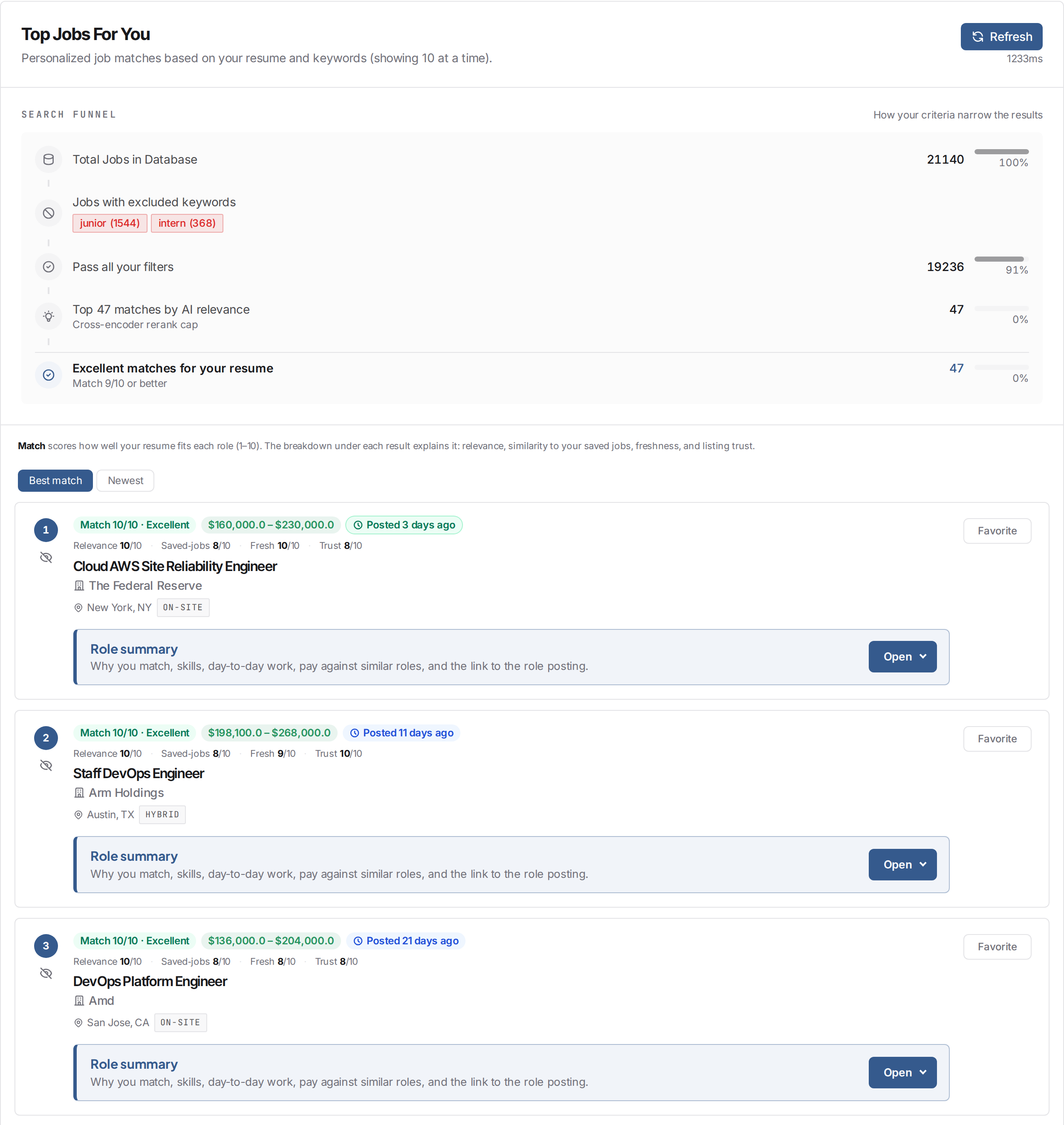
Below the criteria card, Top Jobs For You shows your ranked matches. Each result carries a Match score (1–10) with a breakdown — relevance, similarity to jobs you've saved, freshness, and listing trust. The Search Funnel at the top shows how the full database narrows down to your strongest matches.
The role summary
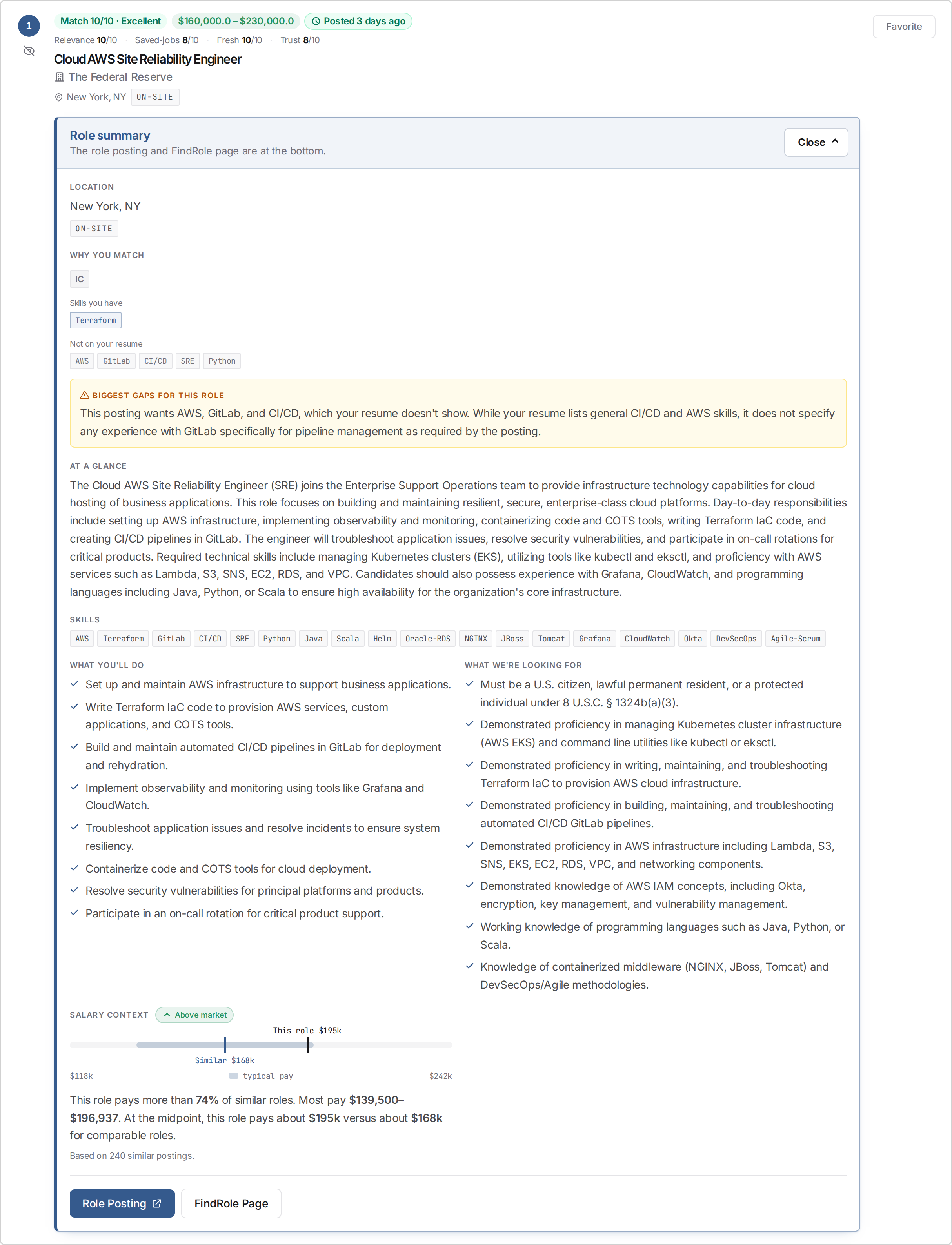
Every card has a Role summary panel. Click Open to see what the role is really about before you leave the page:
- Location — every place the role is offered (the card itself shows the first one and a "+N"), with the same Remote, Hybrid or On-site chip the card carries beside its location.
- Why you match — the skills from the posting that are on your resume, the ones that aren't, and the biggest gaps an interviewer would dig into.
- At a glance — a short summary of the role, then its skills, what you'd do day to day, and what the employer is looking for.
- Salary context — where this role's pay sits against similar postings.
- Role Posting and FindRole Page at the bottom — the link to the employer's posting, and the full job page on FindRole. Both live inside the summary, so you always pass the fit check on your way to the apply button.
Hit Refresh any time, or after saving changes on any tab, to re-run the match against the latest jobs.
Tips for a better match
- Keep your resume current — skills and recent experience carry the most weight.
- Be specific about technologies and domains; vague summaries match weakly.
- Re-upload after a meaningful update so your section embeddings refresh.
After you apply
Saved jobs land on your application board. Once one reaches Interviewing, you can run a practice interview against that exact posting — see Interview Prep.
Privacy
Your resume is used only to power your own matching and is tied to your account. See the Privacy Policy for details.